> ## Documentation Index
> Fetch the complete documentation index at: https://docs.aisync.link/llms.txt
> Use this file to discover all available pages before exploring further.
# Power Dialer
The Power Dialer is your comprehensive outbound calling solution designed to maximize efficiency and productivity. This powerful tool automates your calling campaigns, manages contact lists intelligently, and provides real-time insights to help you connect with more prospects in less time.
The Power Dialer automatically dials through your contact lists, eliminating manual dialing delays and helping your team focus on conversations rather than number entry.
## 🚀 Getting Started
**🧭 Accessing the Power Dialer → Navigate to Dialer**
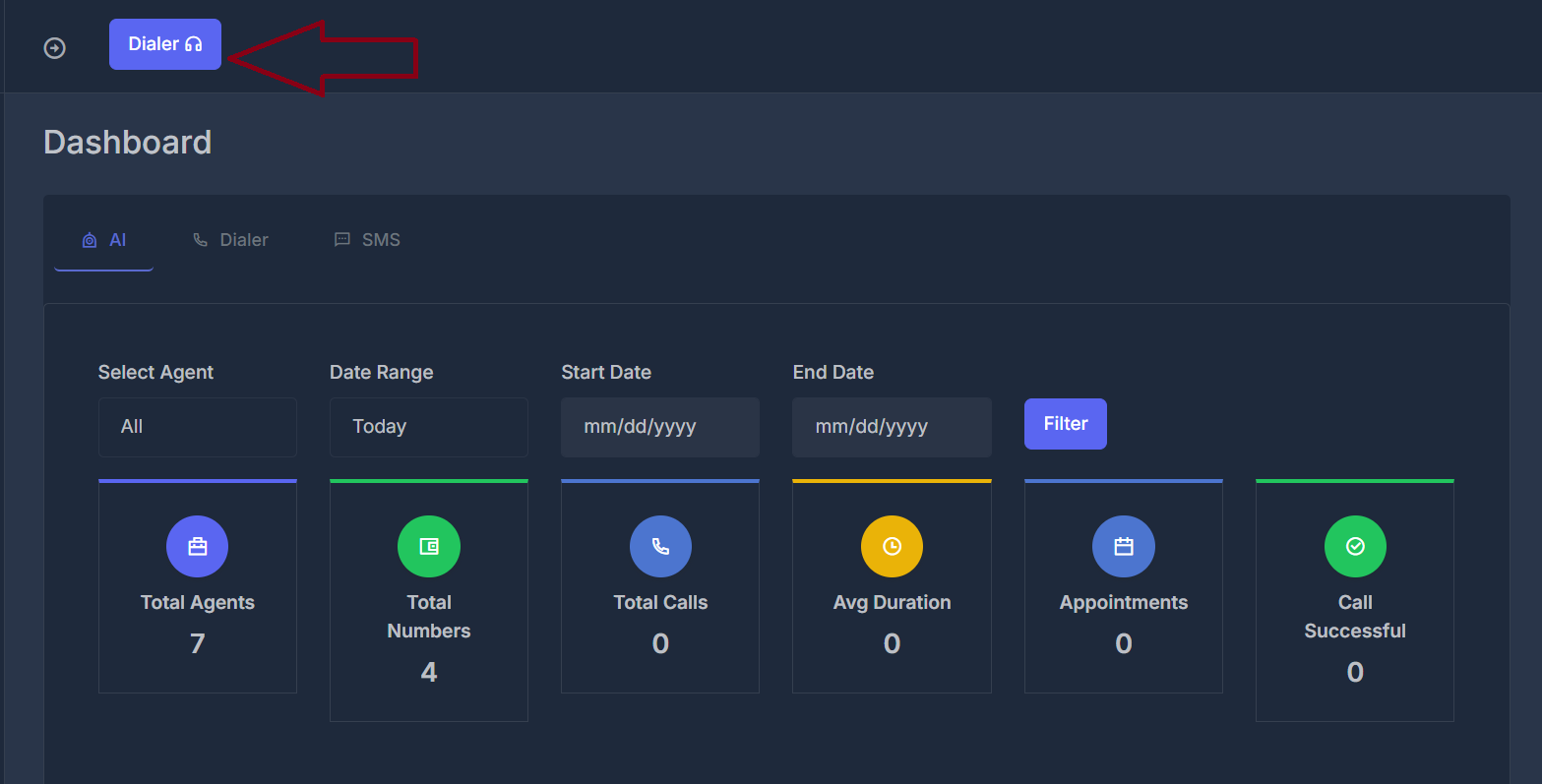 ### 🖥️ Interface Overview
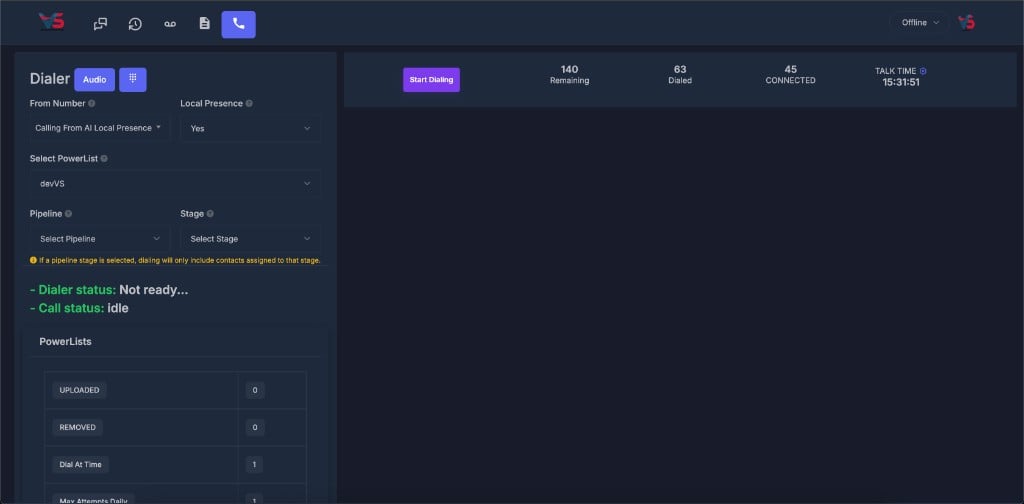 Your Power Dialer workspace includes:
**Left sidebar (campaign setup)**
* **🎧 Audio / Keypad** — switch between audio settings and the dialpad
* **🏷️ From Number** — choose the outbound caller ID line
* **🌎 Local Presence** — turn area-code matching on or off
* **📋 Select PowerList** — choose which contact list to dial
* **🗂️ Pipeline & Stage** — optionally limit dialing to contacts in a pipeline stage
* **📈 PowerList stats** — uploaded, removed, dial-at-a-time, and attempt limits
* **🟢 Status** — dialer and call readiness
**Top bar (live session)**
* **▶️ Start Dialing** — begin calling from the selected list
* **📊 Remaining / Dialed / Connected** — live campaign counts
* **⏱️ Talk Time** — total talk duration, with a filter icon to refine how it is calculated
Also available from the dialer’s navigation: call history, voicemail/recordings, notes/documents, and audio controls.
These statistics update in real-time as your campaign progresses, helping you track performance and adjust strategy as needed.
#### 🏷️ From Number & Local Presence
**From Number** sets the caller ID recipients see when you call.
* Choose a specific number, or an option such as **Calling From AI Local Presence**.
* Your available numbers are the ones purchased and configured on your account.
**Local Presence** (`Yes` / `No`) controls whether the dialer tries to match caller ID to the contact’s area code.
* **Yes** — use local-style caller ID where available (often with a Local Presence “From Number” option).
* **No** — use the selected From Number without area-code matching for this session.
For full Local Presence behavior and batching rules, see [Outbound Call Routing](/dialer/outbound-call-routing).
#### 📋 PowerList Selection
The **Select PowerList** dropdown is your primary tool for choosing which contact list to dial. Agents can switch between campaigns and segments from the left panel.
**✔️ How to select a PowerList**
1. Open **Select PowerList** in the left panel.
2. Confirm the selected list name.
3. Optionally set **Pipeline** and **Stage** (see below).
4. Click **Start Dialing**.
**📈 PowerList status overview**
| Metric | Description |
| ---------------------- | --------------------------------------------------------- |
| **UPLOADED** | Total contacts in the selected powerlist |
| **REMOVED** | Contacts removed or filtered from the list |
| **Dial At Time** | How many contacts dial at once / dial pacing for the list |
| **Max Attempts Daily** | Maximum calls per contact per day |
| **Max Attempts Total** | Lifetime maximum attempts per contact |
#### 🗂️ Pipeline & Stage
Use **Select Pipeline** and **Select Stage** to narrow who gets dialed from the PowerList.
* Leave stage empty to dial contacts from the list without stage filtering.
* If a **pipeline stage** is selected, dialing **only includes contacts assigned to that stage**.
If you select a stage and few contacts are assigned to it, Remaining/Connected counts may look lower than the full PowerList size.
### ⏱️ Talk Time Filters
**Talk Time** on the top bar shows how much time agents have spent connected (talking) for the current filter scope.
Next to the **TALK TIME** label, click the **gear / filter** icon to open **Talk Time Filters**.
Your Power Dialer workspace includes:
**Left sidebar (campaign setup)**
* **🎧 Audio / Keypad** — switch between audio settings and the dialpad
* **🏷️ From Number** — choose the outbound caller ID line
* **🌎 Local Presence** — turn area-code matching on or off
* **📋 Select PowerList** — choose which contact list to dial
* **🗂️ Pipeline & Stage** — optionally limit dialing to contacts in a pipeline stage
* **📈 PowerList stats** — uploaded, removed, dial-at-a-time, and attempt limits
* **🟢 Status** — dialer and call readiness
**Top bar (live session)**
* **▶️ Start Dialing** — begin calling from the selected list
* **📊 Remaining / Dialed / Connected** — live campaign counts
* **⏱️ Talk Time** — total talk duration, with a filter icon to refine how it is calculated
Also available from the dialer’s navigation: call history, voicemail/recordings, notes/documents, and audio controls.
These statistics update in real-time as your campaign progresses, helping you track performance and adjust strategy as needed.
#### 🏷️ From Number & Local Presence
**From Number** sets the caller ID recipients see when you call.
* Choose a specific number, or an option such as **Calling From AI Local Presence**.
* Your available numbers are the ones purchased and configured on your account.
**Local Presence** (`Yes` / `No`) controls whether the dialer tries to match caller ID to the contact’s area code.
* **Yes** — use local-style caller ID where available (often with a Local Presence “From Number” option).
* **No** — use the selected From Number without area-code matching for this session.
For full Local Presence behavior and batching rules, see [Outbound Call Routing](/dialer/outbound-call-routing).
#### 📋 PowerList Selection
The **Select PowerList** dropdown is your primary tool for choosing which contact list to dial. Agents can switch between campaigns and segments from the left panel.
**✔️ How to select a PowerList**
1. Open **Select PowerList** in the left panel.
2. Confirm the selected list name.
3. Optionally set **Pipeline** and **Stage** (see below).
4. Click **Start Dialing**.
**📈 PowerList status overview**
| Metric | Description |
| ---------------------- | --------------------------------------------------------- |
| **UPLOADED** | Total contacts in the selected powerlist |
| **REMOVED** | Contacts removed or filtered from the list |
| **Dial At Time** | How many contacts dial at once / dial pacing for the list |
| **Max Attempts Daily** | Maximum calls per contact per day |
| **Max Attempts Total** | Lifetime maximum attempts per contact |
#### 🗂️ Pipeline & Stage
Use **Select Pipeline** and **Select Stage** to narrow who gets dialed from the PowerList.
* Leave stage empty to dial contacts from the list without stage filtering.
* If a **pipeline stage** is selected, dialing **only includes contacts assigned to that stage**.
If you select a stage and few contacts are assigned to it, Remaining/Connected counts may look lower than the full PowerList size.
### ⏱️ Talk Time Filters
**Talk Time** on the top bar shows how much time agents have spent connected (talking) for the current filter scope.
Next to the **TALK TIME** label, click the **gear / filter** icon to open **Talk Time Filters**.
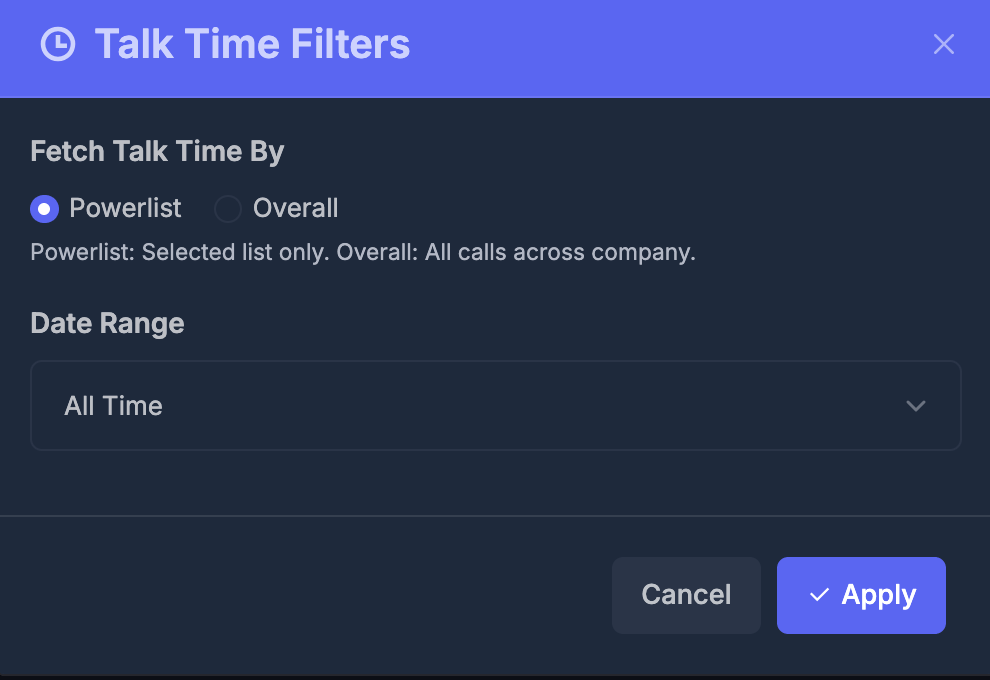 **Fetch Talk Time By**
| Option | What it includes |
| ------------- | ---------------------------------------------- |
| **Powerlist** | Talk time for the **selected PowerList only** |
| **Overall** | Talk time for **all calls across the company** |
**Date Range**
Choose the period used when calculating Talk Time (for example **All Time**, or another range from the dropdown).
**Apply / Cancel**
1. Select **Powerlist** or **Overall**.
2. Pick a **Date Range**.
3. Click **Apply** to update the Talk Time display, or **Cancel** to close without changing filters.
Use **Powerlist** when comparing performance on one campaign list. Use **Overall** when you want company-wide talk time.
### 🛠️ PowerList Management Features
* **Real-time Updates**: Statistics update automatically as you dial
* **Quick Switching**: Change powerlists without interrupting your workflow
* **Campaign Segmentation**: Use different lists (and pipeline stages) for different audiences
* **Test Campaigns**: Use smaller lists for testing before full deployment
* **Progress Tracking**: Monitor how many contacts remain in your current list
**💡 Best Practices for PowerList Selection**
Create separate powerlists for different customer segments, time zones, or campaign types
Use smaller test lists to verify your approach before dialing larger contact lists
Keep track of remaining contacts and adjust your strategy based on performance
Ensure your powerlists comply with calling regulations and include opt-out mechanisms
#### ⚙️ Campaign Configuration
| Setting | Purpose |
| ---------------------- | ---------------------------------------------------------- |
| **Uploaded** | Total contacts uploaded to the current PowerList |
| **Removed** | Contacts removed or filtered out from the list |
| **Dial At Time** | Dial pacing / how many contacts dial together for the list |
| **Max Attempts Daily** | Maximum number of attempts per contact per day |
| **Max Attempts Total** | Lifetime maximum attempts per contact across campaigns |
### ☎️ Manual Dialing Interface
**Fetch Talk Time By**
| Option | What it includes |
| ------------- | ---------------------------------------------- |
| **Powerlist** | Talk time for the **selected PowerList only** |
| **Overall** | Talk time for **all calls across the company** |
**Date Range**
Choose the period used when calculating Talk Time (for example **All Time**, or another range from the dropdown).
**Apply / Cancel**
1. Select **Powerlist** or **Overall**.
2. Pick a **Date Range**.
3. Click **Apply** to update the Talk Time display, or **Cancel** to close without changing filters.
Use **Powerlist** when comparing performance on one campaign list. Use **Overall** when you want company-wide talk time.
### 🛠️ PowerList Management Features
* **Real-time Updates**: Statistics update automatically as you dial
* **Quick Switching**: Change powerlists without interrupting your workflow
* **Campaign Segmentation**: Use different lists (and pipeline stages) for different audiences
* **Test Campaigns**: Use smaller lists for testing before full deployment
* **Progress Tracking**: Monitor how many contacts remain in your current list
**💡 Best Practices for PowerList Selection**
Create separate powerlists for different customer segments, time zones, or campaign types
Use smaller test lists to verify your approach before dialing larger contact lists
Keep track of remaining contacts and adjust your strategy based on performance
Ensure your powerlists comply with calling regulations and include opt-out mechanisms
#### ⚙️ Campaign Configuration
| Setting | Purpose |
| ---------------------- | ---------------------------------------------------------- |
| **Uploaded** | Total contacts uploaded to the current PowerList |
| **Removed** | Contacts removed or filtered out from the list |
| **Dial At Time** | Dial pacing / how many contacts dial together for the list |
| **Max Attempts Daily** | Maximum number of attempts per contact per day |
| **Max Attempts Total** | Lifetime maximum attempts per contact across campaigns |
### ☎️ Manual Dialing Interface
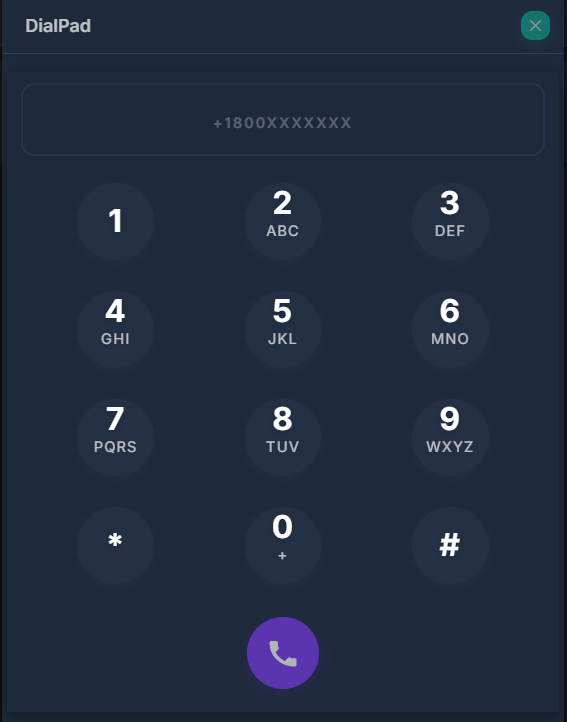 **📝 When to Use Manual Dialing**
While the Power Dialer automates most calling, manual dialing is useful for:
* **Priority callbacks**: Immediately calling high-value prospects
* **Custom numbers**: Dialing numbers not in your PowerList
* **Testing**: Verifying audio setup before campaigns
* **Emergency contacts**: Quick access to important numbers
**⌨️ Dialpad Features**
* **Number Input Field**: Enter complete phone numbers (format: +1800XXXXXXX)
* **Standard Keypad**: Traditional phone layout with alphabetic shortcuts (ABC, DEF, etc.)
* **Call Button**: Purple call initiation button to start the call
* **Number Formatting**: Automatic formatting for international and domestic numbers
Type or click the phone number in the input field
Ensure the number includes country code (+1 for US)
Click the purple call button to start dialing
### 📋 Call History Management
**📝 When to Use Manual Dialing**
While the Power Dialer automates most calling, manual dialing is useful for:
* **Priority callbacks**: Immediately calling high-value prospects
* **Custom numbers**: Dialing numbers not in your PowerList
* **Testing**: Verifying audio setup before campaigns
* **Emergency contacts**: Quick access to important numbers
**⌨️ Dialpad Features**
* **Number Input Field**: Enter complete phone numbers (format: +1800XXXXXXX)
* **Standard Keypad**: Traditional phone layout with alphabetic shortcuts (ABC, DEF, etc.)
* **Call Button**: Purple call initiation button to start the call
* **Number Formatting**: Automatic formatting for international and domestic numbers
Type or click the phone number in the input field
Ensure the number includes country code (+1 for US)
Click the purple call button to start dialing
### 📋 Call History Management
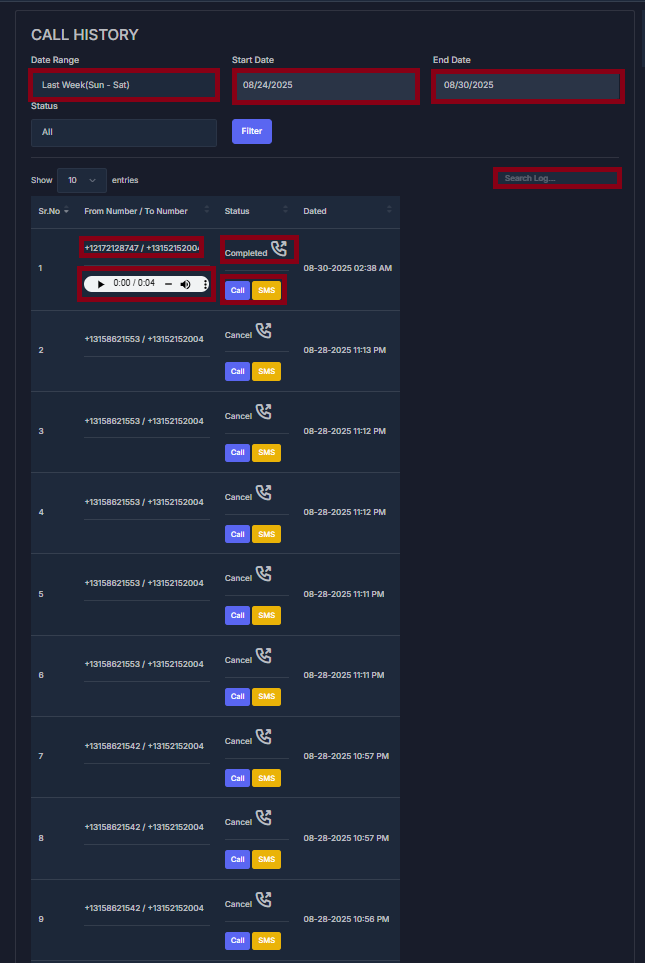 Comprehensive call tracking includes:
**🔍 Advanced Filtering**
* **Date Range Selection**: Last Week (Sun - Sat)
* **Custom Date Ranges**: 08/24/2025 - 08/30/2025
* **Status Filtering**: All, Completed, Cancelled, etc.
* **Search Functionality**: Search through call logs
#### 📊 Call Log Details
| Column | Information |
| ------------------ | -------------------------------- |
| **Sr.No** | Sequential call number |
| **From/To Number** | Complete phone number details |
| **Status** | Call outcome (Completed, Cancel) |
| **Date** | Timestamp of call |
| **Actions** | Call/SMS follow-up buttons |
**🎵 Audio Playback**
* **Call Recording Access**: Play recorded conversations
* **Audio Controls**: Play, pause, volume adjustment
* **Call Duration**: 0:00 timestamp display
**🎧 Audio Device Management**
Comprehensive call tracking includes:
**🔍 Advanced Filtering**
* **Date Range Selection**: Last Week (Sun - Sat)
* **Custom Date Ranges**: 08/24/2025 - 08/30/2025
* **Status Filtering**: All, Completed, Cancelled, etc.
* **Search Functionality**: Search through call logs
#### 📊 Call Log Details
| Column | Information |
| ------------------ | -------------------------------- |
| **Sr.No** | Sequential call number |
| **From/To Number** | Complete phone number details |
| **Status** | Call outcome (Completed, Cancel) |
| **Date** | Timestamp of call |
| **Actions** | Call/SMS follow-up buttons |
**🎵 Audio Playback**
* **Call Recording Access**: Play recorded conversations
* **Audio Controls**: Play, pause, volume adjustment
* **Call Duration**: 0:00 timestamp display
**🎧 Audio Device Management**
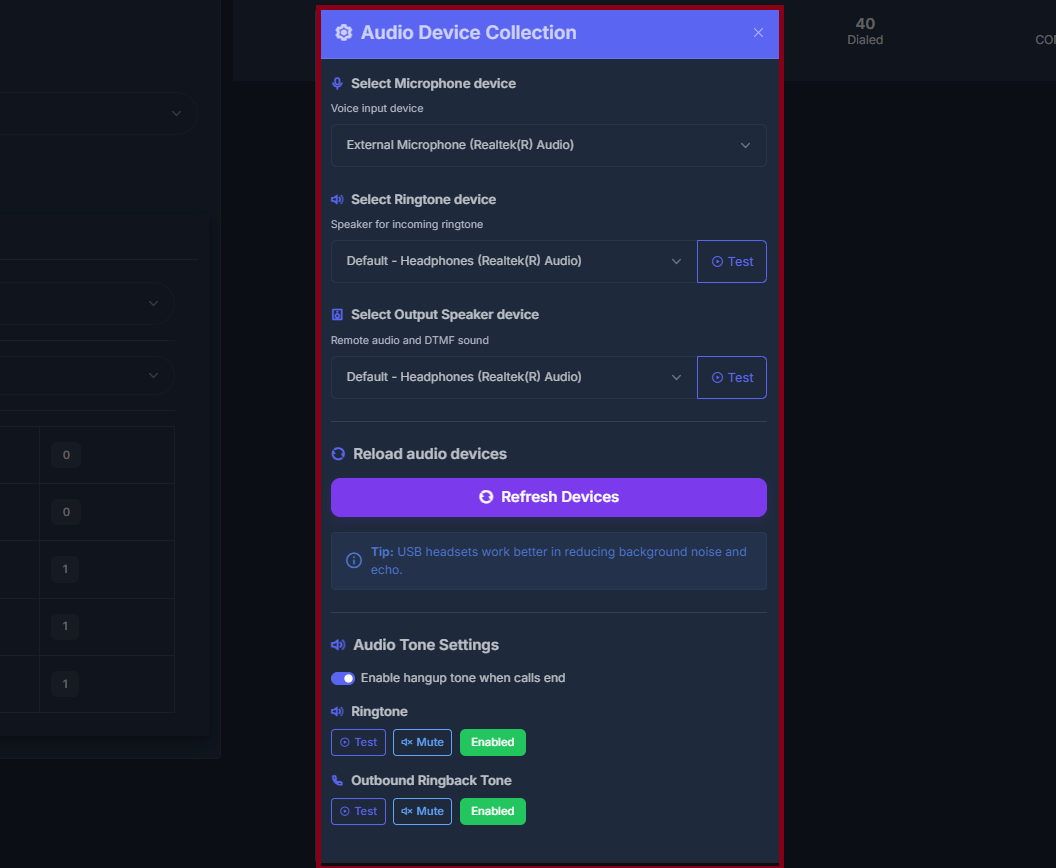 Complete audio configuration includes:
**🎤 Microphone Settings**
* **Device Selection**: External Microphone (Realtek Audio)
* **Voice Input Configuration**: Optimized for call quality
**🔊 Ringtone Configuration**
* **Speaker Selection**: Default - Headphones (Realtek Audio)
* **Test Functionality**: Audio testing capability
* **Incoming Call Audio**: Dedicated ringtone device
**📢 Output Speaker Settings**
* **Remote Audio**: DTMF sound configuration
* **Speaker Device**: Default - Headphones (Realtek Audio)
* **Audio Testing**: Built-in test controls
**🔄 Device Management**
* **Reload Audio Devices**: Refresh available devices
* **Refresh Devices**: Update device list
* **USB Headset Tip**: Noise reduction recommendation
**🎵 Audio Tone Settings**
* **Hangup Tone**: Enable/disable call end tones
* **Ringtone Controls**: Test, Mute, Enable options
* **Outbound Ringback Tone**: Test, Mute, Enable controls
### 📊 System Status Dashboard
Complete audio configuration includes:
**🎤 Microphone Settings**
* **Device Selection**: External Microphone (Realtek Audio)
* **Voice Input Configuration**: Optimized for call quality
**🔊 Ringtone Configuration**
* **Speaker Selection**: Default - Headphones (Realtek Audio)
* **Test Functionality**: Audio testing capability
* **Incoming Call Audio**: Dedicated ringtone device
**📢 Output Speaker Settings**
* **Remote Audio**: DTMF sound configuration
* **Speaker Device**: Default - Headphones (Realtek Audio)
* **Audio Testing**: Built-in test controls
**🔄 Device Management**
* **Reload Audio Devices**: Refresh available devices
* **Refresh Devices**: Update device list
* **USB Headset Tip**: Noise reduction recommendation
**🎵 Audio Tone Settings**
* **Hangup Tone**: Enable/disable call end tones
* **Ringtone Controls**: Test, Mute, Enable options
* **Outbound Ringback Tone**: Test, Mute, Enable controls
### 📊 System Status Dashboard
 The status dashboard provides real-time visibility into your dialer's operational state and readiness.
#### 🟢 Status Indicators Explained
**Dialer Status**
* **"Not ready..."**: System is initializing or loading PowerList
* **"Ready"**: Dialer is prepared and waiting for instructions
* **"Dialing"**: Currently attempting to connect a call
* **"Connected"**: Active call in progress
**Call Status**
* **"Idle"**: No active calls, ready to dial next number
* **"Ringing"**: Outbound call is ringing
* **"Connected"**: Call successfully connected
* **"Disconnected"**: Call ended, preparing for next dial
**User Availability**
* **Online**: Available to receive and make calls
* **Offline**: Unavailable, dialer will not initiate new calls
* **Busy**: Currently on a call or handling post-call tasks
* **Away**: Temporarily unavailable
#### 🩺 System Health Monitoring
**Connection Status**
* **Network Connectivity**: Internet connection quality
* **Server Communication**: Connection to dialing servers
* **Audio Device Status**: Microphone and speaker readiness
* **PowerList Sync**: Contact list synchronization status
The status dashboard provides real-time visibility into your dialer's operational state and readiness.
#### 🟢 Status Indicators Explained
**Dialer Status**
* **"Not ready..."**: System is initializing or loading PowerList
* **"Ready"**: Dialer is prepared and waiting for instructions
* **"Dialing"**: Currently attempting to connect a call
* **"Connected"**: Active call in progress
**Call Status**
* **"Idle"**: No active calls, ready to dial next number
* **"Ringing"**: Outbound call is ringing
* **"Connected"**: Call successfully connected
* **"Disconnected"**: Call ended, preparing for next dial
**User Availability**
* **Online**: Available to receive and make calls
* **Offline**: Unavailable, dialer will not initiate new calls
* **Busy**: Currently on a call or handling post-call tasks
* **Away**: Temporarily unavailable
#### 🩺 System Health Monitoring
**Connection Status**
* **Network Connectivity**: Internet connection quality
* **Server Communication**: Connection to dialing servers
* **Audio Device Status**: Microphone and speaker readiness
* **PowerList Sync**: Contact list synchronization status