> ## Documentation Index
> Fetch the complete documentation index at: https://docs.aisync.link/llms.txt
> Use this file to discover all available pages before exploring further.
# Outbound Call Routing
> Configure Local Presence, voicemail templates, and iPhone screening templates for outbound dialing.
This guide covers outbound dialer settings so you can choose the right **Local Presence**, **voicemail**, and **iPhone screening** options for your calls.
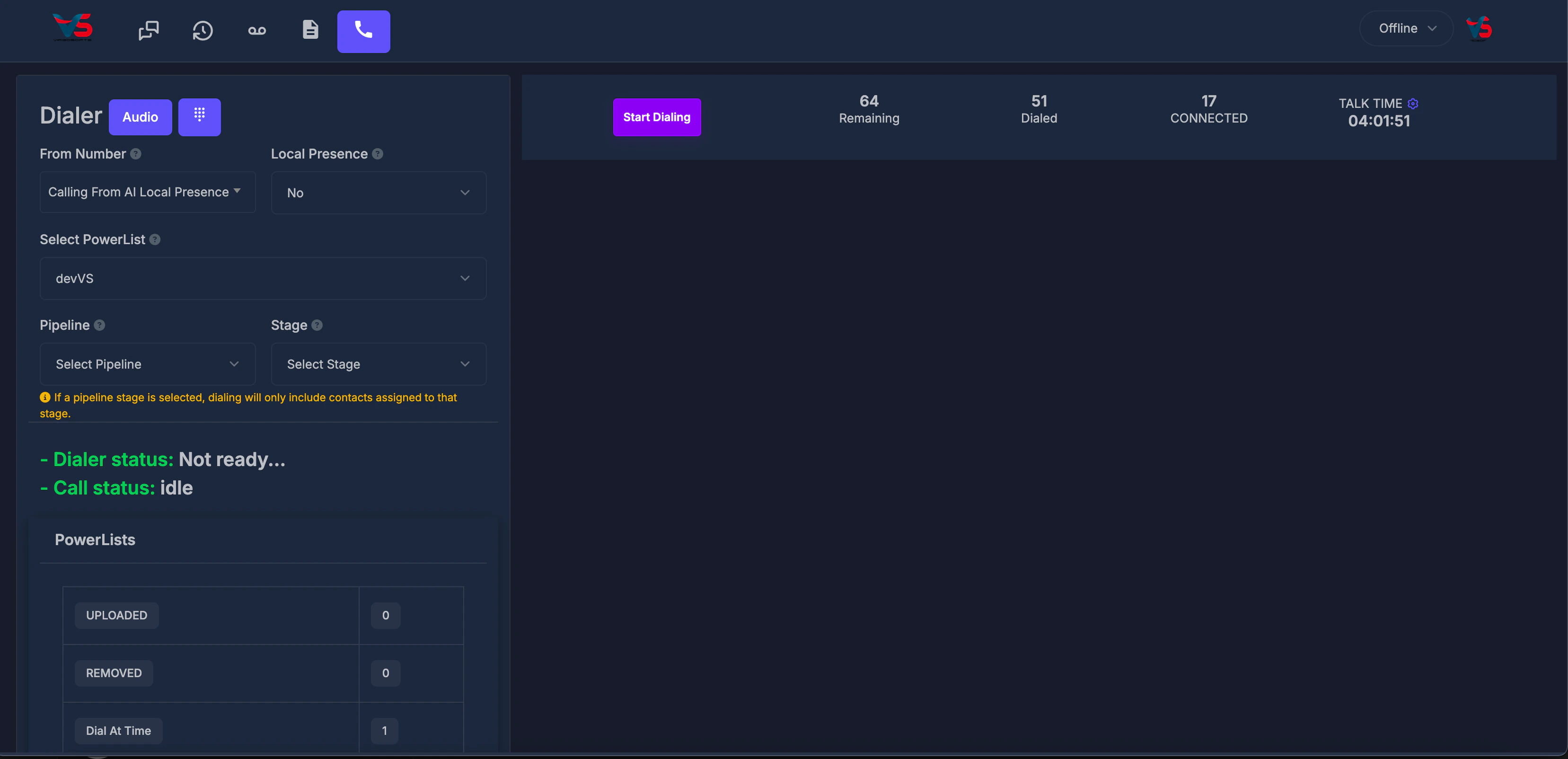
#### **📟 Dialer 1.0**
 #### **📞 Dialer 2.0**
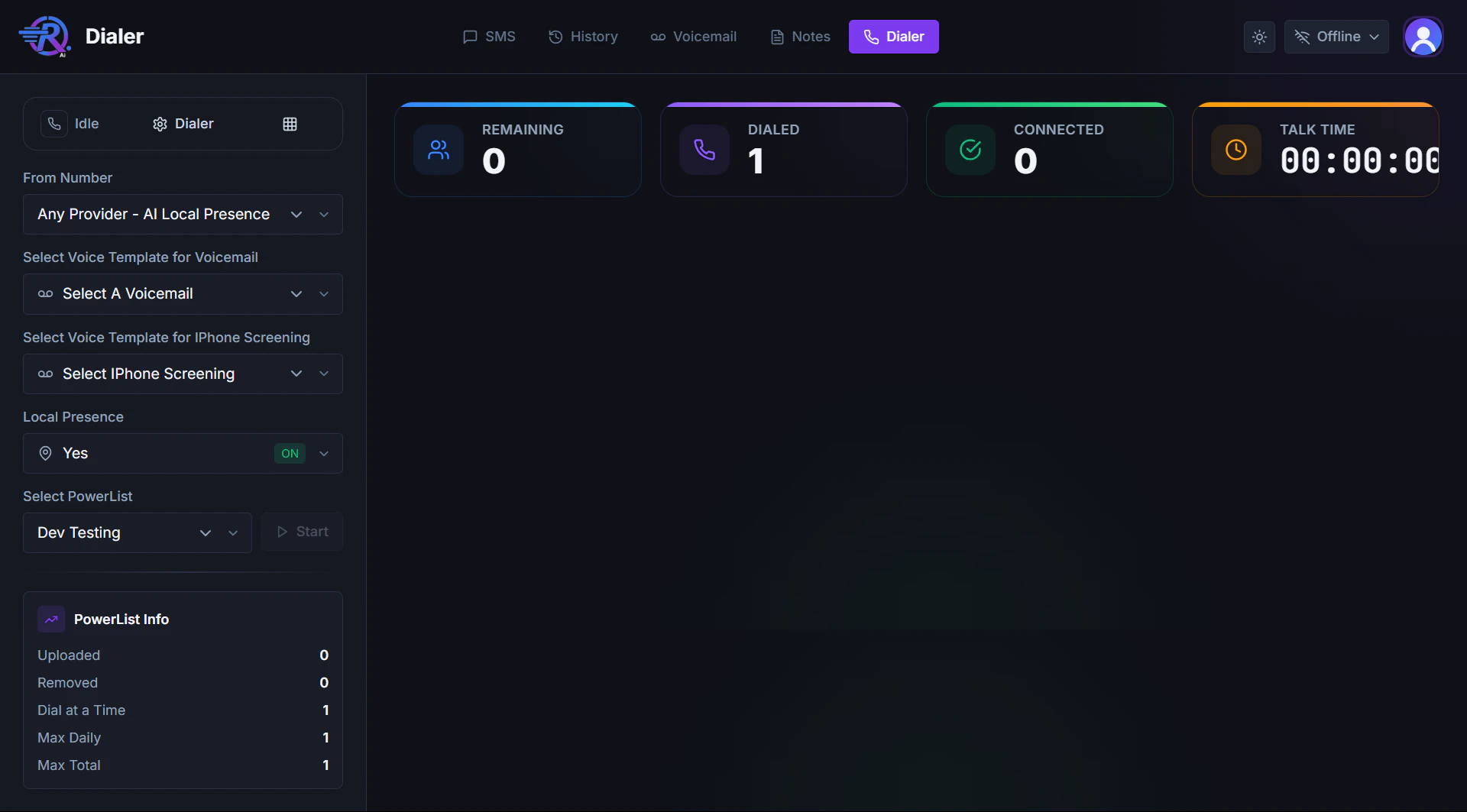
In Dialer 2.0, the left sidebar includes **From Number**, voice template pickers for **voicemail** and **iPhone screening**, **Local Presence**, and **PowerList** selection.
#### **📞 Dialer 2.0**
In Dialer 2.0, the left sidebar includes **From Number**, voice template pickers for **voicemail** and **iPhone screening**, **Local Presence**, and **PowerList** selection.
 ## 🎙️ Voice templates for outbound calls
Create and manage templates in **Manage → Voice Templates**, then select them here before you start dialing.
### 📧 Select Voice Template for Voicemail
Use this when you want an automated message left if the contact does not answer and the call hits voicemail.
* Choose a saved voice template from **Select A Voicemail**.
* When voicemail is detected, that template plays so a consistent message is left without the agent speaking live.
* Leave the field unselected if you do not want an automatic voicemail drop for this session.
**Tip:** Keep voicemail templates short and clear (who you are, why you called, and how to call back).
### 📱 Select Voice Template for iPhone Screening
Many iPhones use **Call Screening** (including Live Voicemail), which asks unknown callers to say their name or reason for calling before the phone rings or connects.
* Choose a saved voice template from **Select iPhone Screening**.
* When screening is detected, that template plays so the system can respond instead of staying silent or disconnecting.
* A short intro that states your name and company usually works best for screening prompts.
If you do not select an iPhone screening template, screening prompts may not get a clear spoken reply, which can lower the chance the call reaches the contact.
Voicemail and iPhone screening templates are separate. You can use different audio for each, or only configure the one you need.
## 📞 What is Local Presence?
**Local Presence** helps you display a caller ID that matches the contact's area code when you place outbound calls. Many teams use this because people are more likely to answer calls that appear to come from their own region.
## ⚙️ How Local Presence Works
### ✅ When Local Presence is Set to Yes
To enable area-code matching, you must also set **Calling From** / **From Number** to **Calling From AI Local Presence** (or **Any Provider - AI Local Presence** in Dialer 2.0).
When both settings are correct:
* Outbound calls will use a **caller ID matched to the contact's area code** (when that matching is available for your account and numbers).
* Dialing is performed **region by region for the batch** so the dialed caller ID can line up with the contacts in that region.
* If a region does not have enough ready contacts to fill a full batch, you may receive a **smaller batch**.
* The system **does not pad** that same round with contacts from other regions just to meet the batch size.
### 🚫 When Local Presence is Set to No
When you set Local Presence to **No**:
* You are not asking the dialer to match caller ID to each contact's area code for this dialing session.
* The dialer uses your normal **Calling From** / **From Number** choice (for example your main company number or another configured outbound line).
* Dialing order is still based on your power list in a sensible sequence.
* If the "busiest" region does not have enough ready contacts for a full round, the system **can add more contacts from other regions within the same batch**. This helps you stay closer to your configured **dial at a time** behavior instead of stopping short.
## 🎙️ Voice templates for outbound calls
Create and manage templates in **Manage → Voice Templates**, then select them here before you start dialing.
### 📧 Select Voice Template for Voicemail
Use this when you want an automated message left if the contact does not answer and the call hits voicemail.
* Choose a saved voice template from **Select A Voicemail**.
* When voicemail is detected, that template plays so a consistent message is left without the agent speaking live.
* Leave the field unselected if you do not want an automatic voicemail drop for this session.
**Tip:** Keep voicemail templates short and clear (who you are, why you called, and how to call back).
### 📱 Select Voice Template for iPhone Screening
Many iPhones use **Call Screening** (including Live Voicemail), which asks unknown callers to say their name or reason for calling before the phone rings or connects.
* Choose a saved voice template from **Select iPhone Screening**.
* When screening is detected, that template plays so the system can respond instead of staying silent or disconnecting.
* A short intro that states your name and company usually works best for screening prompts.
If you do not select an iPhone screening template, screening prompts may not get a clear spoken reply, which can lower the chance the call reaches the contact.
Voicemail and iPhone screening templates are separate. You can use different audio for each, or only configure the one you need.
## 📞 What is Local Presence?
**Local Presence** helps you display a caller ID that matches the contact's area code when you place outbound calls. Many teams use this because people are more likely to answer calls that appear to come from their own region.
## ⚙️ How Local Presence Works
### ✅ When Local Presence is Set to Yes
To enable area-code matching, you must also set **Calling From** / **From Number** to **Calling From AI Local Presence** (or **Any Provider - AI Local Presence** in Dialer 2.0).
When both settings are correct:
* Outbound calls will use a **caller ID matched to the contact's area code** (when that matching is available for your account and numbers).
* Dialing is performed **region by region for the batch** so the dialed caller ID can line up with the contacts in that region.
* If a region does not have enough ready contacts to fill a full batch, you may receive a **smaller batch**.
* The system **does not pad** that same round with contacts from other regions just to meet the batch size.
### 🚫 When Local Presence is Set to No
When you set Local Presence to **No**:
* You are not asking the dialer to match caller ID to each contact's area code for this dialing session.
* The dialer uses your normal **Calling From** / **From Number** choice (for example your main company number or another configured outbound line).
* Dialing order is still based on your power list in a sensible sequence.
* If the "busiest" region does not have enough ready contacts for a full round, the system **can add more contacts from other regions within the same batch**. This helps you stay closer to your configured **dial at a time** behavior instead of stopping short.