> ## Documentation Index
> Fetch the complete documentation index at: https://docs.aisync.link/llms.txt
> Use this file to discover all available pages before exploring further.
# Intelligence
> User guide for Knowledge Base, conversation sliders, pronunciation dictionary, reminders, AutoRizz, Smooth Talk, and boosted keywords.
#### 💡 Intelligence Tab (User Guide)
The **Intelligence** tab controls how your agent listens, how quickly it speaks back, how it says specific words, whether it uses short natural acknowledgements during a call, and how it handles reminders and special word lists.
## 📐 Layout of the screen
* **Main (wider) column:** Knowledge Base, Conversation Settings, Pronunciation Dictionary, Reminder Settings
* **Side (narrow) column:** AutoRizz, Smooth Talk, Boosted Keywords
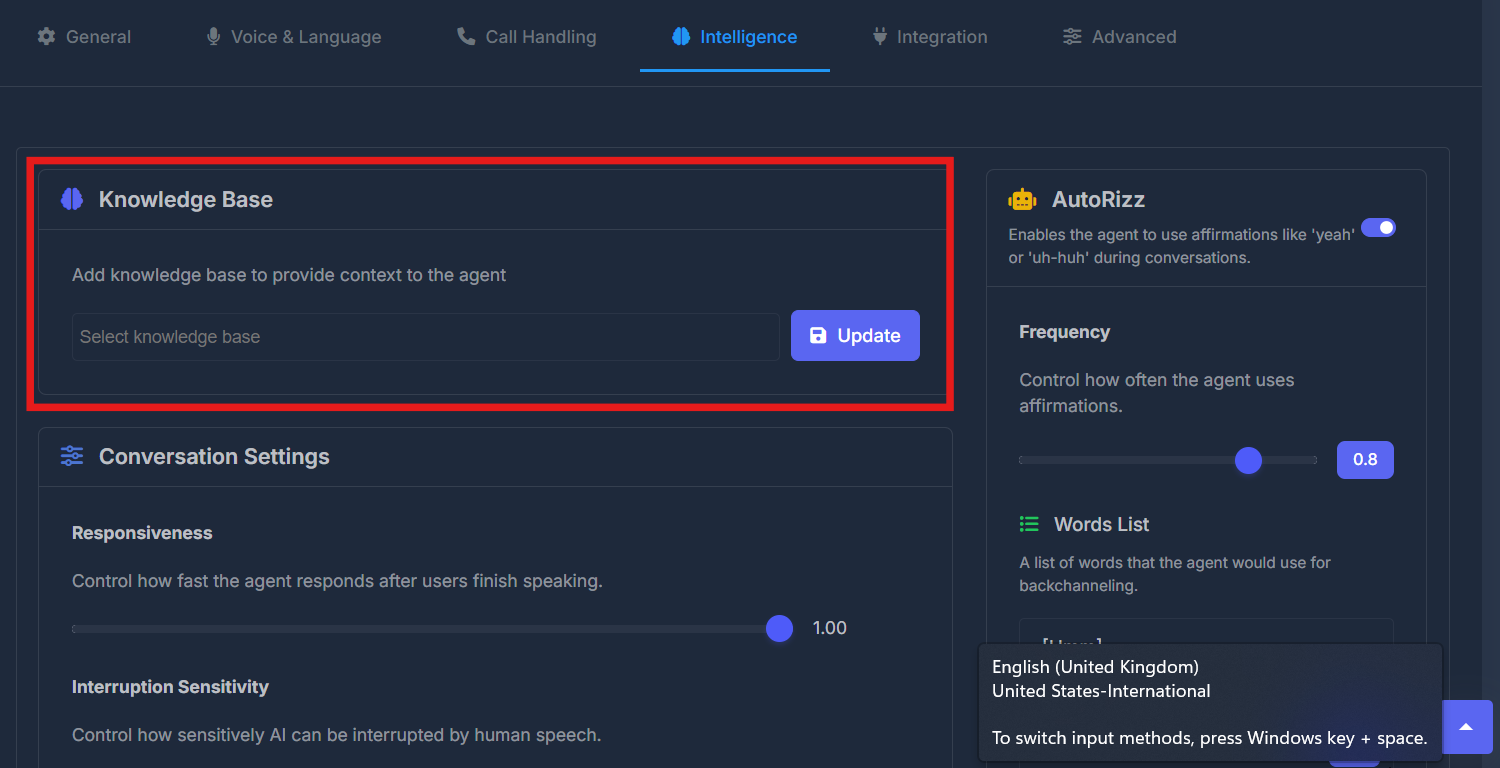
## 📚 Knowledge Base
**Purpose**\
Connect your agent to reference material so it can answer using the right context—your business facts, FAQs, or uploaded knowledge you have already created in your account.
**How to use it**
* Read the short description under the title: it explains that a knowledge base gives the agent context.
* Use the dropdown list to **select one or more** knowledge bases (whatever your organization has already created).
* Click **Update** to apply your selection.
* Nothing is applied to the agent until you click **Update**.
**Note**\
If the list is empty, your team needs to create knowledge bases elsewhere in the product first. Only existing items appear here.
 ## 💬 Conversation Settings
**Purpose**\
Adjust the agent’s behavior in live conversation—specifically, how quickly it responds after the caller finishes speaking and how sensitive it is to being interrupted.
A small **?** icon beside the section heading provides additional tooltips when you hover.
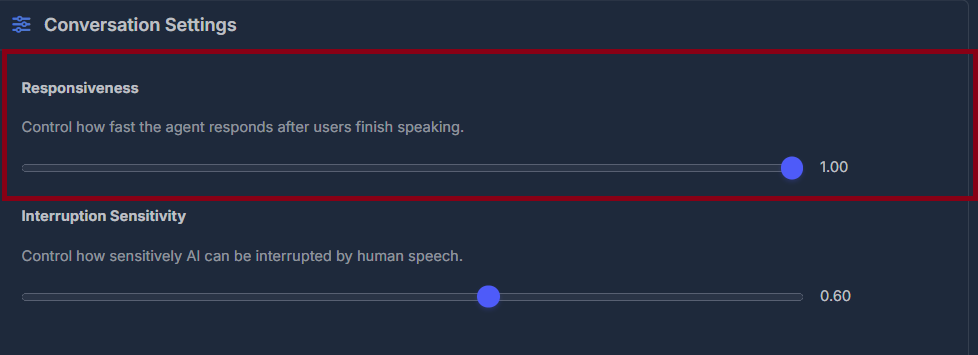
**Responsiveness** sets how fast the agent replies following a pause from the caller. Use the slider to adjust; the adjacent number (rounded to two decimals) shows the current setting. The value saves as soon as you release the slider—no Save button is needed.
## 💬 Conversation Settings
**Purpose**\
Adjust the agent’s behavior in live conversation—specifically, how quickly it responds after the caller finishes speaking and how sensitive it is to being interrupted.
A small **?** icon beside the section heading provides additional tooltips when you hover.
**Responsiveness** sets how fast the agent replies following a pause from the caller. Use the slider to adjust; the adjacent number (rounded to two decimals) shows the current setting. The value saves as soon as you release the slider—no Save button is needed.
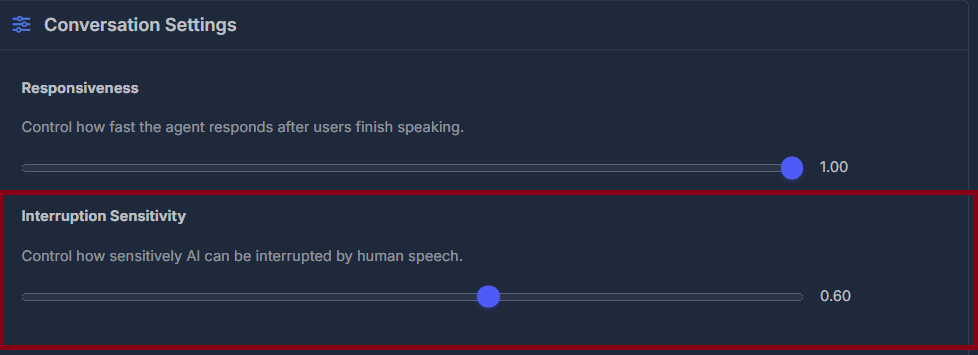
 **Interruption Sensitivity** adjusts how easily the agent picks up on being interrupted by the caller. This uses a similar slider and live value readout. As with the previous control, releasing the slider updates the value right away.
 **Note:** The tooltip may reference other features such as ambient noise handling, but only Responsiveness and Interruption Sensitivity are managed here. Other audio settings may be found in different tabs.
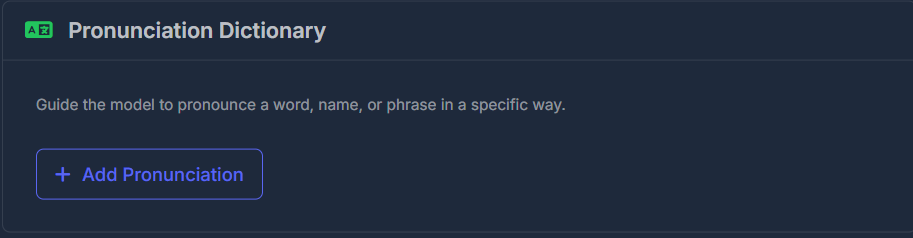
## 🗣️ Pronunciation Dictionary
**Purpose**\
Ensure the agent pronounces names, brands, or technical terms correctly by specifying custom pronunciations.
**List Interface:**\
Each entry in the list covers a single word or phrase. Use the **Edit** (pencil) button to change an entry, or **Delete** (trash) to remove it (with confirmation).
To add a new pronunciation, click **Add Pronunciation**. The form includes:
| Field | Description |
| ----------------- | ------------------------------------------------------- |
| **Words** | The word or phrase the agent will say |
| **Pronunciation** | Select either **IPA** or **CMU**—speech sound notations |
| **Phoneme** | Enter the pronunciation in the selected sound system |
Click **Save** to add or update an entry, or **Cancel** to exit without changes. When editing, the form will populate with the selected entry’s current details.
**Note:** The tooltip may reference other features such as ambient noise handling, but only Responsiveness and Interruption Sensitivity are managed here. Other audio settings may be found in different tabs.
## 🗣️ Pronunciation Dictionary
**Purpose**\
Ensure the agent pronounces names, brands, or technical terms correctly by specifying custom pronunciations.
**List Interface:**\
Each entry in the list covers a single word or phrase. Use the **Edit** (pencil) button to change an entry, or **Delete** (trash) to remove it (with confirmation).
To add a new pronunciation, click **Add Pronunciation**. The form includes:
| Field | Description |
| ----------------- | ------------------------------------------------------- |
| **Words** | The word or phrase the agent will say |
| **Pronunciation** | Select either **IPA** or **CMU**—speech sound notations |
| **Phoneme** | Enter the pronunciation in the selected sound system |
Click **Save** to add or update an entry, or **Cancel** to exit without changes. When editing, the form will populate with the selected entry’s current details.
 ## ⏰ Reminder Settings
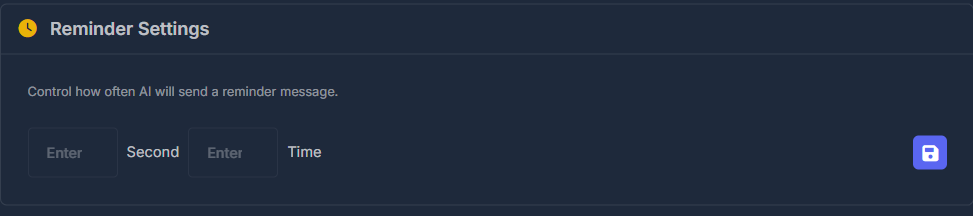
**Purpose**\
Configure how the agent issues reminders during a call, for example if silence from the caller exceeds a threshold.
**Fields:**
* **Seconds:** Sets the minimum time before a reminder is triggered (i.e., time gap between reminders).
* **Times:** Defines the maximum number of reminders the agent can send per call.
Click the **Save** button (disk icon) after entering both numbers. Both must be greater than zero—otherwise, a validation message will appear.
## ⏰ Reminder Settings
**Purpose**\
Configure how the agent issues reminders during a call, for example if silence from the caller exceeds a threshold.
**Fields:**
* **Seconds:** Sets the minimum time before a reminder is triggered (i.e., time gap between reminders).
* **Times:** Defines the maximum number of reminders the agent can send per call.
Click the **Save** button (disk icon) after entering both numbers. Both must be greater than zero—otherwise, a validation message will appear.
 ## ⚡ AutoRizz
**Purpose**\
Allows the agent to naturally insert short acknowledgement phrases (like “yeah,” “uh-huh,” or “hmm”) during calls to sound more conversational.
## ⚡ AutoRizz
**Purpose**\
Allows the agent to naturally insert short acknowledgement phrases (like “yeah,” “uh-huh,” or “hmm”) during calls to sound more conversational.
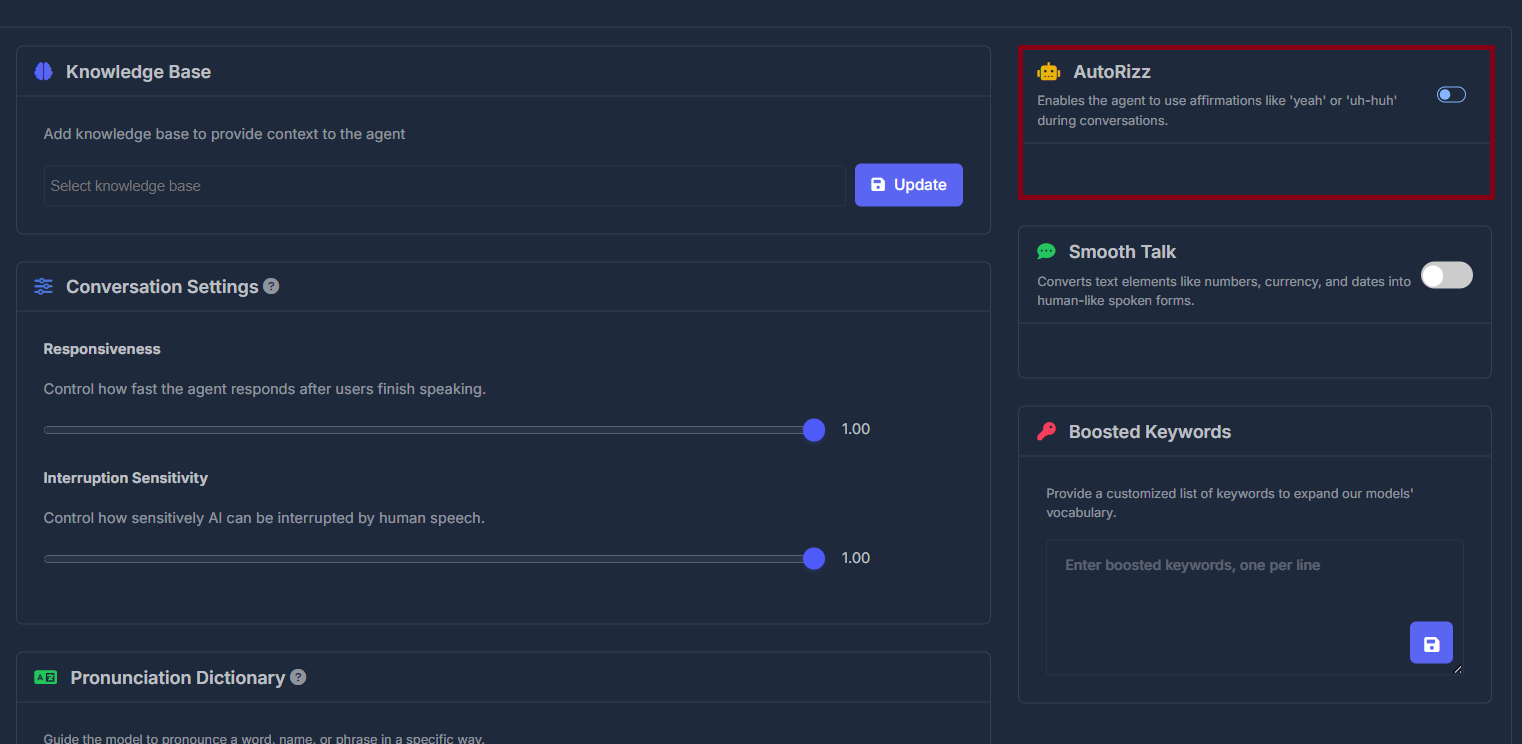 **Main Toggle:**\
Switching AutoRizz **On** reveals the Frequency slider and the Words List box; switching **Off** hides these and disables the feature.
**Frequency** adjusts how often the agent uses acknowledgements (slider, with a live value badge). The updated value is stored when the slider is released.
**Main Toggle:**\
Switching AutoRizz **On** reveals the Frequency slider and the Words List box; switching **Off** hides these and disables the feature.
**Frequency** adjusts how often the agent uses acknowledgements (slider, with a live value badge). The updated value is stored when the slider is released.
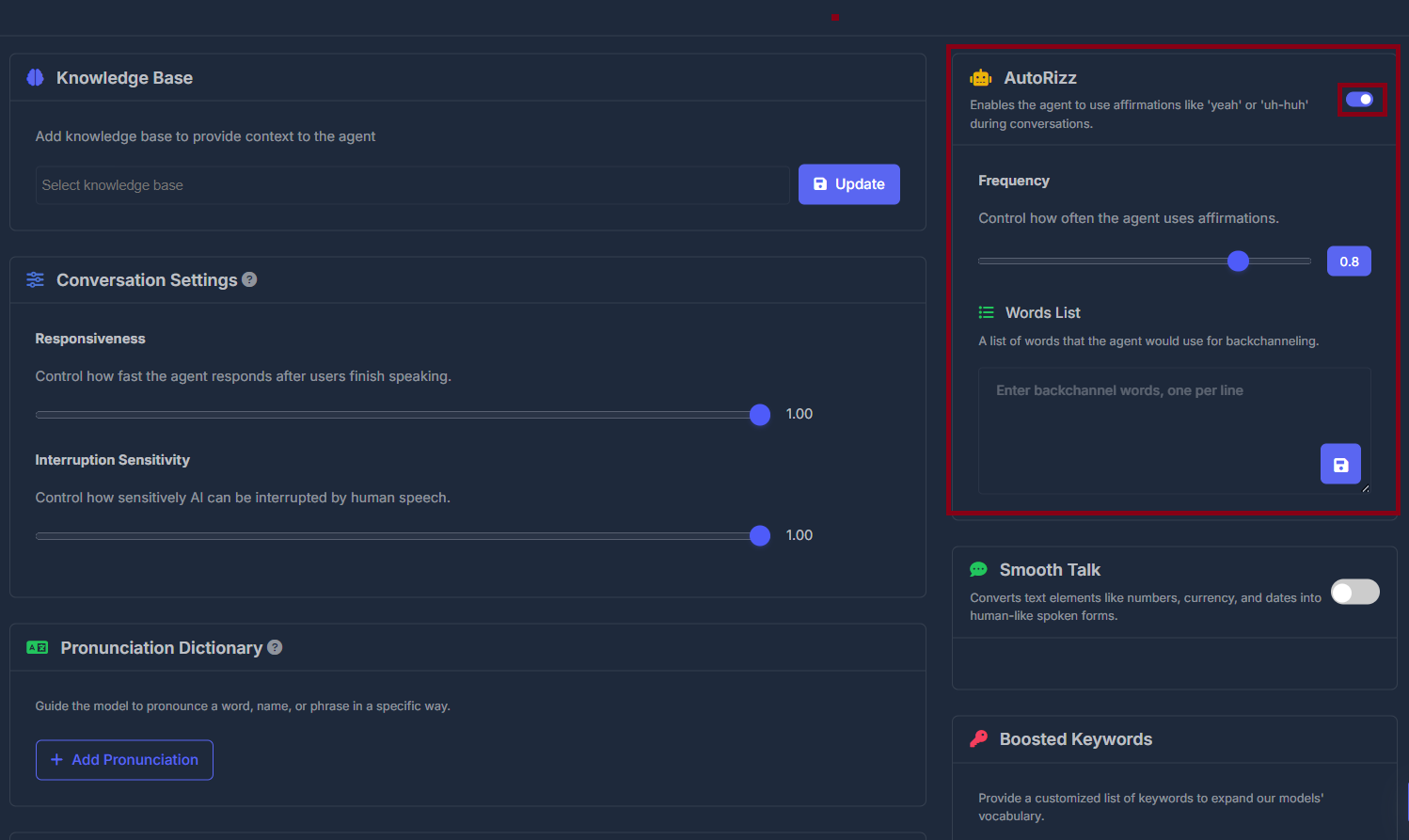 **Words List** consists of a text box, with each line representing a word or short phrase the agent can use. Make your changes, then click **Save**—unsaved changes do not apply. At least one line must contain content, otherwise an error is shown.
The list and frequency reload automatically to reflect the agent’s most recently stored settings.
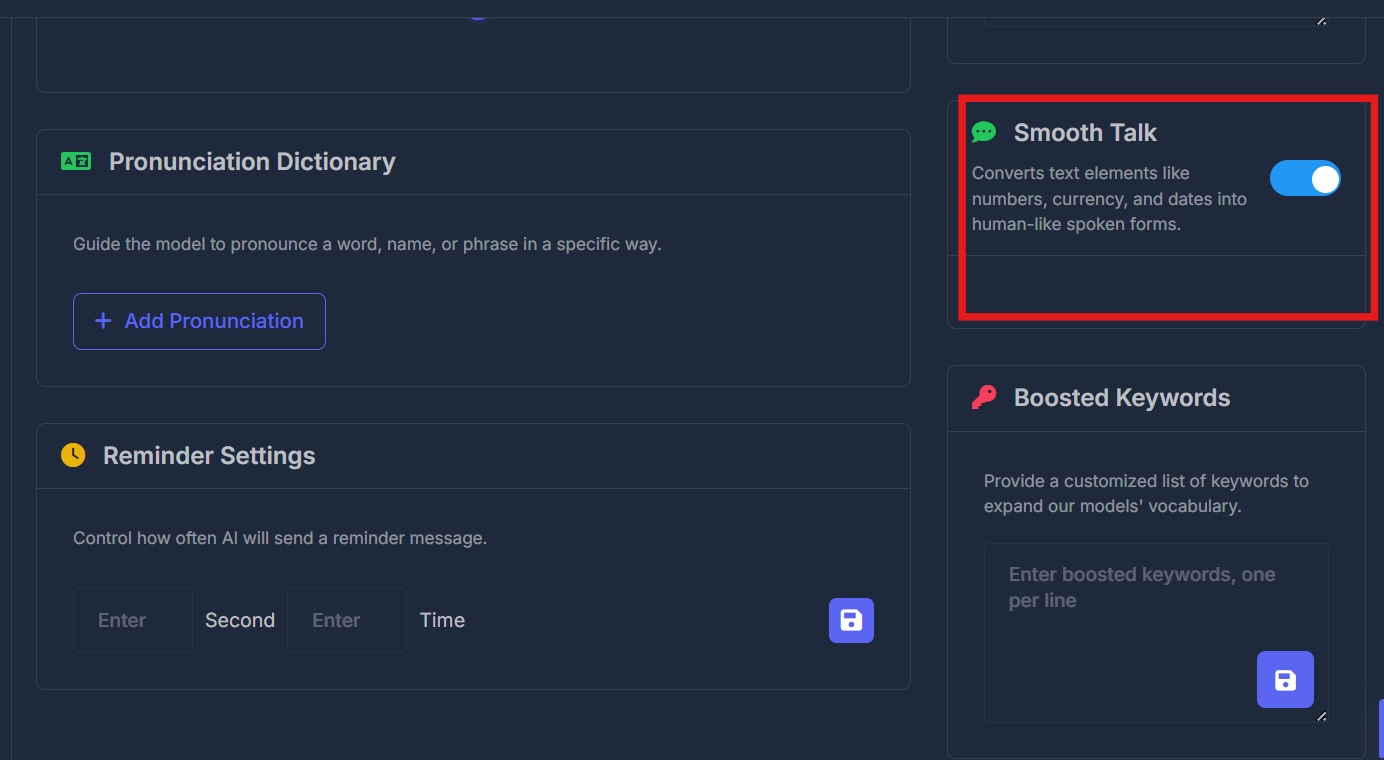
## ✨ Smooth Talk
**Purpose**\
When enabled, Smooth Talk makes the agent read out numbers, currencies, and dates in a more natural, conversational way.
There is just a simple On/Off switch; toggling it takes effect immediately. No extra configuration fields appear in this section.
**Words List** consists of a text box, with each line representing a word or short phrase the agent can use. Make your changes, then click **Save**—unsaved changes do not apply. At least one line must contain content, otherwise an error is shown.
The list and frequency reload automatically to reflect the agent’s most recently stored settings.
## ✨ Smooth Talk
**Purpose**\
When enabled, Smooth Talk makes the agent read out numbers, currencies, and dates in a more natural, conversational way.
There is just a simple On/Off switch; toggling it takes effect immediately. No extra configuration fields appear in this section.
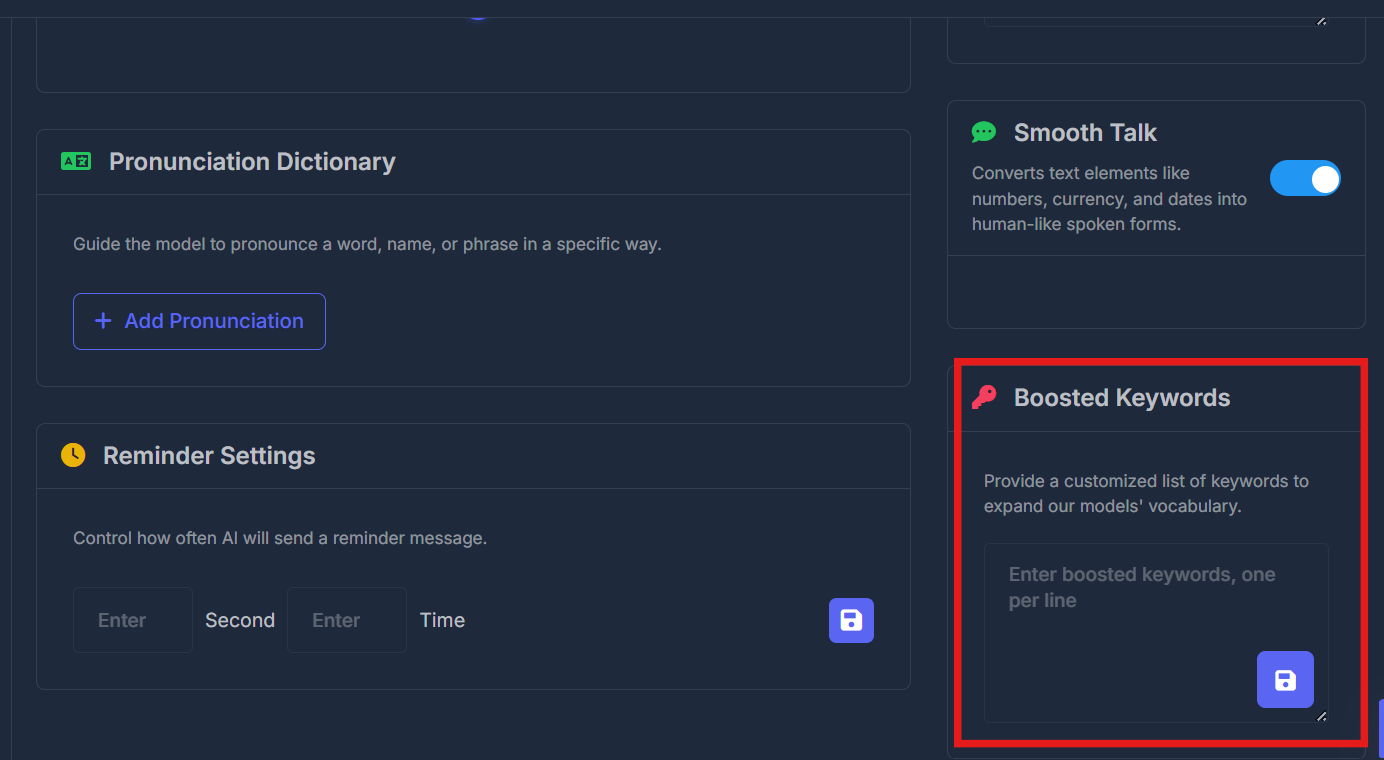
 ## 🔤 Boosted Keywords
**Purpose**\
Provide a custom list of high-priority words—such as important names or industry-specific terms—to improve the agent’s recognition and pronunciation.
Enter one keyword per line in the input area. Click the **Save** icon below to apply your list. At least one keyword is required, or you’ll see a validation error.
## 🔤 Boosted Keywords
**Purpose**\
Provide a custom list of high-priority words—such as important names or industry-specific terms—to improve the agent’s recognition and pronunciation.
Enter one keyword per line in the input area. Click the **Save** icon below to apply your list. At least one keyword is required, or you’ll see a validation error.