> ## Documentation Index
> Fetch the complete documentation index at: https://docs.aisync.link/llms.txt
> Use this file to discover all available pages before exploring further.
# Integration
> Set up GoHighLevel (GHL) integration to automatically sync call data, recordings, and outcomes with your CRM.
# 🔗 Integrating with GoHighLevel (GHL)
Seamlessly connect your AI agent to GoHighLevel to automate CRM updates with call recordings, transcriptions, analytics, and tags—no manual data entry required.
 ## 📤 Recording & Transcription Sync
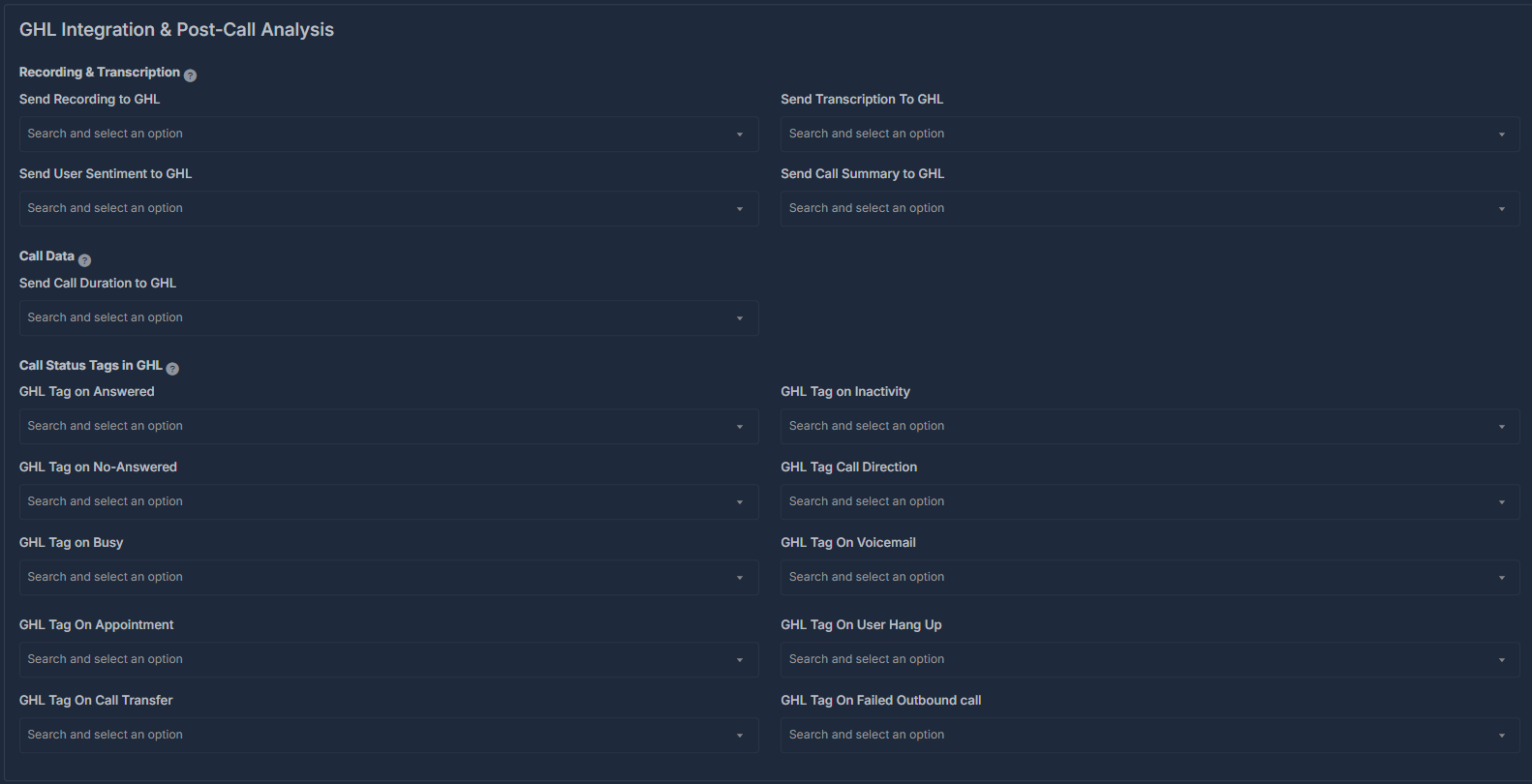
Configure which call details are sent to GHL:
* **Recording Upload**\
Automatically send call recordings to GHL, or toggle off if not needed.
* **Transcription Upload**\
Choose whether AI-generated call transcripts should be added to GHL.
* **User Sentiment Sharing**\
Send AI-scored sentiment (positive, neutral, negative) for each call.
* **Call Summary Sync**\
Populate GHL custom fields with concise summaries of each call.
*First, create custom fields in GoHighLevel for details like "Recording URL," "AI Transcription," "Sentiment," and "Summary." In the integration dashboard, map each AI data point to your chosen GHL field. Once mapped, data flows automatically.*
## 📤 Recording & Transcription Sync
Configure which call details are sent to GHL:
* **Recording Upload**\
Automatically send call recordings to GHL, or toggle off if not needed.
* **Transcription Upload**\
Choose whether AI-generated call transcripts should be added to GHL.
* **User Sentiment Sharing**\
Send AI-scored sentiment (positive, neutral, negative) for each call.
* **Call Summary Sync**\
Populate GHL custom fields with concise summaries of each call.
*First, create custom fields in GoHighLevel for details like "Recording URL," "AI Transcription," "Sentiment," and "Summary." In the integration dashboard, map each AI data point to your chosen GHL field. Once mapped, data flows automatically.*
 ## ⏱️ Call Analytics & Data Points
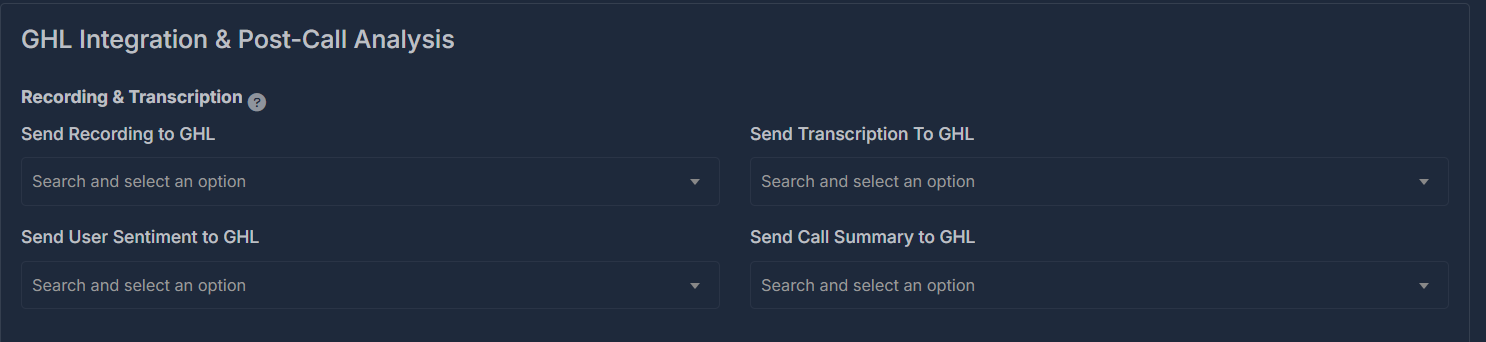
Send key analytics to GHL:
* **Call Duration**\
Automatically log call duration for tracking or billing.
* **Call Direction (Inbound/Outbound)**\
Record whether each call was incoming or outgoing.
*For every metric, add matching custom fields in GHL (e.g., "Call Duration"), then connect your agent’s analytics to these fields within the integration settings.*
## ⏱️ Call Analytics & Data Points
Send key analytics to GHL:
* **Call Duration**\
Automatically log call duration for tracking or billing.
* **Call Direction (Inbound/Outbound)**\
Record whether each call was incoming or outgoing.
*For every metric, add matching custom fields in GHL (e.g., "Call Duration"), then connect your agent’s analytics to these fields within the integration settings.*
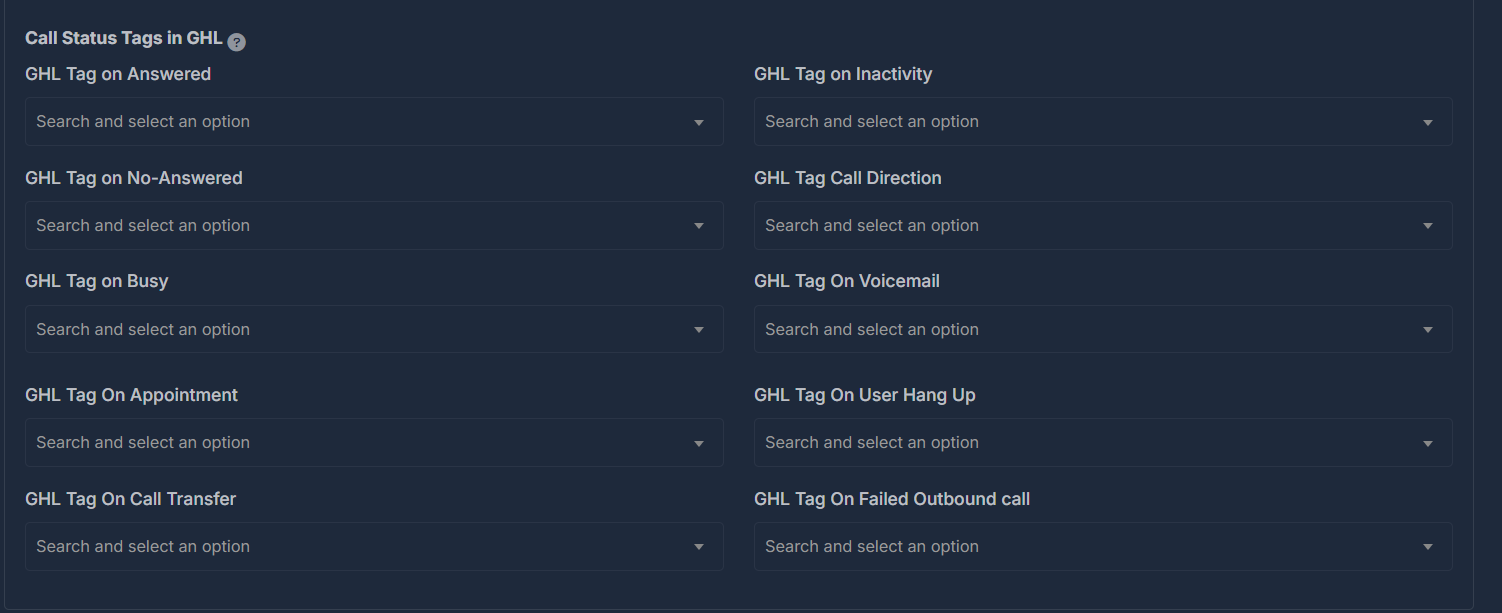
 ## 🏷️ GHL Call Outcome Tags
Let your AI agent tag contacts/leads in GHL based on call results:
* **Answered**
* **No Answer**
* **Busy**
* **Inactivity**
* **Appointment Set**
* **Call Transfer**
* **Voicemail**
* **Call Direction (Inbound/Outbound)**
* **User Hung Up**
* **Failed Outbound Call**
For each outcome, the relevant tag is automatically applied—helping you filter, track, and automate next actions in GHL.
> **Tip:** Tags appear immediately in your GHL CRM for rapid sorting, follow-up automation, and reporting—no extra setup needed.
## 🏷️ GHL Call Outcome Tags
Let your AI agent tag contacts/leads in GHL based on call results:
* **Answered**
* **No Answer**
* **Busy**
* **Inactivity**
* **Appointment Set**
* **Call Transfer**
* **Voicemail**
* **Call Direction (Inbound/Outbound)**
* **User Hung Up**
* **Failed Outbound Call**
For each outcome, the relevant tag is automatically applied—helping you filter, track, and automate next actions in GHL.
> **Tip:** Tags appear immediately in your GHL CRM for rapid sorting, follow-up automation, and reporting—no extra setup needed.