> ## Documentation Index
> Fetch the complete documentation index at: https://docs.aisync.link/llms.txt
> Use this file to discover all available pages before exploring further.
# General
#### 🎛️ General Tab
This is where you set your AI agent’s **name**, **on or off state**, **folder**, **location**, **time zone**, **how the first message works**, and **full instructions (the prompt)**. **General** holds the core setup.
## 🗂️ Above the tabs
| Element | What it does |
| ------------------------------ | ----------------------------------------------------------------------------------------- |
| **Back to Agents** | Returns you to the list of agents. |
| **Agent title (page heading)** | Shows the name currently used for this agent. |
| **Delete** | After confirmation, removes this agent. |
| **Talk With Agent** | Starts a test call so you can hear how the agent responds. **Hangup** ends the test call. |
## 1️⃣ Top Row Details
 **🏷️ Display Name (Agent Name)**
You see the name and an **edit** control.
* **Edit** opens a field below; **Update** sends the new name.
* On success, the name at the top of the page and in General both update.
* The name is also updated on the calling side so calls use the same display name.
**🔛 Status**
A switch for **on** or **off**.
* **On** — the agent is treated as available for use.
* **Off** — the agent is not active for handling work.
**📁 Folder**
Help text explains that you can group agents into folders for organization.
Choosing a folder **saves immediately** when you change the selection.
**📍 GHL Location**
Help text explains that this is the **GoHighLevel location** where call data, contacts, and conversation records are tied.
Changing the location **saves** and can refresh related choices elsewhere (for example calendars or field lists). On first load or when you change location, **automatic field matching** may run if no mappings existed before.
**🕒 Timezone**
Help text explains that this is the time zone used for this agent for scheduling and time-related behavior.
Changing the time zone **saves immediately**.
## 2️⃣ Agent Test
**🏷️ Display Name (Agent Name)**
You see the name and an **edit** control.
* **Edit** opens a field below; **Update** sends the new name.
* On success, the name at the top of the page and in General both update.
* The name is also updated on the calling side so calls use the same display name.
**🔛 Status**
A switch for **on** or **off**.
* **On** — the agent is treated as available for use.
* **Off** — the agent is not active for handling work.
**📁 Folder**
Help text explains that you can group agents into folders for organization.
Choosing a folder **saves immediately** when you change the selection.
**📍 GHL Location**
Help text explains that this is the **GoHighLevel location** where call data, contacts, and conversation records are tied.
Changing the location **saves** and can refresh related choices elsewhere (for example calendars or field lists). On first load or when you change location, **automatic field matching** may run if no mappings existed before.
**🕒 Timezone**
Help text explains that this is the time zone used for this agent for scheduling and time-related behavior.
Changing the time zone **saves immediately**.
## 2️⃣ Agent Test
 The **Agent Test** panel gives you three ways to try out your AI agent before going live with real contacts:
1. **Chat:**
* Interact with the agent in a text chat interface.
* Great for quickly testing conversational flow, prompts, and responses.
2. **Voice:**
* Test the agent using voice in your browser.
* Speak naturally and hear how the agent responds in real time.
3. **Phone:**
* Make a real test call to your phone number and talk to the agent as an actual caller.
* Experience exactly what your customers will, including telephony flow and audio quality.
Choose any option to demo, refine, or debug your agent’s behavior based on your needs.\
You can end the session at any time.
## 3️⃣ Welcome Message
Help text explains that you control **how the conversation starts** — whether the caller speaks first or the AI speaks first.
The **Agent Test** panel gives you three ways to try out your AI agent before going live with real contacts:
1. **Chat:**
* Interact with the agent in a text chat interface.
* Great for quickly testing conversational flow, prompts, and responses.
2. **Voice:**
* Test the agent using voice in your browser.
* Speak naturally and hear how the agent responds in real time.
3. **Phone:**
* Make a real test call to your phone number and talk to the agent as an actual caller.
* Experience exactly what your customers will, including telephony flow and audio quality.
Choose any option to demo, refine, or debug your agent’s behavior based on your needs.\
You can end the session at any time.
## 3️⃣ Welcome Message
Help text explains that you control **how the conversation starts** — whether the caller speaks first or the AI speaks first.
 Three choices:
1. **User initiates**\
The AI stays quiet until the caller speaks.
2. **AI initiates — dynamic opening**\
The AI starts the call; the first line comes from the **system default** (you do not type a custom line).
3. **AI initiates — your own opening**\
The AI starts and uses **exactly the text** you type in the box below.
The large text box **only appears** when the third option is selected.
These welcome settings are applied when you press **Save** on the prompt (see below), together with the rest of the General prompt.
## 4️⃣ General Prompt
This area controls how your AI agent’s core behavior is set and versioned. Here, you specify **exactly what the agent should do, how it should act, and any boundaries or rules it must follow.**
Three choices:
1. **User initiates**\
The AI stays quiet until the caller speaks.
2. **AI initiates — dynamic opening**\
The AI starts the call; the first line comes from the **system default** (you do not type a custom line).
3. **AI initiates — your own opening**\
The AI starts and uses **exactly the text** you type in the box below.
The large text box **only appears** when the third option is selected.
These welcome settings are applied when you press **Save** on the prompt (see below), together with the rest of the General prompt.
## 4️⃣ General Prompt
This area controls how your AI agent’s core behavior is set and versioned. Here, you specify **exactly what the agent should do, how it should act, and any boundaries or rules it must follow.**
 The prompt editor includes:
* **Prompt Name:**\
You must enter a unique name before saving your prompt. When saving, the system adds the current date and time to the name to keep each version distinct.
* **Version List (dropdown):**\
Lets you access past prompt versions for this agent. Selecting a version immediately reloads its contents into the editor for review or modification. The trash icon deletes a saved version after confirmation.
* **Prompt Mode:**\
Two options are available—**Sectioned Prompt** (each topic in its own box) and **Single Prompt** (all content in one). Switching modes will automatically split or merge your content, with no data lost. A description below the radio buttons clarifies the current mode.
* **Action Buttons:**
* **Copy Prompt:** Copy for resuse.
* **Paste Prompt:** Inserts prompt content from your clipboard (preserving section format in Sectioned mode).
* **Clear Prompt:** Erases all content, after confirmation.
* **Launch Pad:** Additional tool options (such as importing/exporting prompts).
* **Default Prompt:**\
Create a new prompt by choosing an industry and a starter template. Using this will pre-fill all related fields, which you’re free to further edit.
* **Placeholder Tags:**\
Below the prompt, you’ll see a line showing available dynamic variables (e.g., `{first_name}`, `{meeting_pin}`) that the agent can use during conversations for accurate, tailored responses.
Every setting here is applied only when you save the prompt version. You can freely test changes and revert as needed with version controls.
## 5️⃣ Placeholder tags (dynamic variables)
Below the prompt area, a line shows **tags in curly braces**. These come from your contact fields, plus **current date and time** and **join meeting pin** where applicable.
During a live call, these tags are **filled with real values** for that contact or call so the agent can speak accurately.
## 6️⃣ Sectioned Prompt Boxes (Sectioned mode)
When you’re in **Sectioned Prompt** mode, the editor displays separate boxes for different areas of your agent’s instructions. Each one includes a help icon offering a quick tooltip about what to include.
Here’s what each section covers:
| Section | Description |
| -------------------------------------- | --------------------------------------------------------------- |
| **Project instructions / Request** | The core objective—the main thing you want this agent to do. |
| **Greetings** | The initial message or opening line for every conversation. |
| **Call Flow** | The intended step-by-step flow and sequence of the call. |
| **Character** | Guidance on tone, personality, and overall style. |
| **Transfer Call** | How and when to transfer the call to a human operator. |
| **Critical Instructions / Guardrails** | Rules and hard limits—the “never do this” instructions. |
| **Custom Field References** | Details about special fields or variables your use-case needs. |
| **What Your Company Does** | A quick summary of your products, services, or mission. |
| **Script** | Bullet points or a linear script for the agent to follow. |
| **Objection Handling** | How to address common rejections or pushback. |
| **Booking flow** | The process to schedule calls or appointments (e.g., with GHL). |
| **FAQ / Knowledge Base** | Common questions, answers, and reference info. |
You’ll also see an **Expand** button for each section—click it to enlarge and make longer edits easily.
If you switch to **Single Prompt** mode, all content is merged into one box labeled **All Prompts**.
## 7️⃣ Apply this prompt to other agents (when shown)
This block appears when the system offers **other agents** you can target.
The prompt editor includes:
* **Prompt Name:**\
You must enter a unique name before saving your prompt. When saving, the system adds the current date and time to the name to keep each version distinct.
* **Version List (dropdown):**\
Lets you access past prompt versions for this agent. Selecting a version immediately reloads its contents into the editor for review or modification. The trash icon deletes a saved version after confirmation.
* **Prompt Mode:**\
Two options are available—**Sectioned Prompt** (each topic in its own box) and **Single Prompt** (all content in one). Switching modes will automatically split or merge your content, with no data lost. A description below the radio buttons clarifies the current mode.
* **Action Buttons:**
* **Copy Prompt:** Copy for resuse.
* **Paste Prompt:** Inserts prompt content from your clipboard (preserving section format in Sectioned mode).
* **Clear Prompt:** Erases all content, after confirmation.
* **Launch Pad:** Additional tool options (such as importing/exporting prompts).
* **Default Prompt:**\
Create a new prompt by choosing an industry and a starter template. Using this will pre-fill all related fields, which you’re free to further edit.
* **Placeholder Tags:**\
Below the prompt, you’ll see a line showing available dynamic variables (e.g., `{first_name}`, `{meeting_pin}`) that the agent can use during conversations for accurate, tailored responses.
Every setting here is applied only when you save the prompt version. You can freely test changes and revert as needed with version controls.
## 5️⃣ Placeholder tags (dynamic variables)
Below the prompt area, a line shows **tags in curly braces**. These come from your contact fields, plus **current date and time** and **join meeting pin** where applicable.
During a live call, these tags are **filled with real values** for that contact or call so the agent can speak accurately.
## 6️⃣ Sectioned Prompt Boxes (Sectioned mode)
When you’re in **Sectioned Prompt** mode, the editor displays separate boxes for different areas of your agent’s instructions. Each one includes a help icon offering a quick tooltip about what to include.
Here’s what each section covers:
| Section | Description |
| -------------------------------------- | --------------------------------------------------------------- |
| **Project instructions / Request** | The core objective—the main thing you want this agent to do. |
| **Greetings** | The initial message or opening line for every conversation. |
| **Call Flow** | The intended step-by-step flow and sequence of the call. |
| **Character** | Guidance on tone, personality, and overall style. |
| **Transfer Call** | How and when to transfer the call to a human operator. |
| **Critical Instructions / Guardrails** | Rules and hard limits—the “never do this” instructions. |
| **Custom Field References** | Details about special fields or variables your use-case needs. |
| **What Your Company Does** | A quick summary of your products, services, or mission. |
| **Script** | Bullet points or a linear script for the agent to follow. |
| **Objection Handling** | How to address common rejections or pushback. |
| **Booking flow** | The process to schedule calls or appointments (e.g., with GHL). |
| **FAQ / Knowledge Base** | Common questions, answers, and reference info. |
You’ll also see an **Expand** button for each section—click it to enlarge and make longer edits easily.
If you switch to **Single Prompt** mode, all content is merged into one box labeled **All Prompts**.
## 7️⃣ Apply this prompt to other agents (when shown)
This block appears when the system offers **other agents** you can target.
 * You may select **more than one** agent (hold Ctrl on Windows or Command on Mac while clicking).
* When you press **Save**, the same prompt and welcome behavior can be applied to those agents so you do not repeat the work for each one.
Some agent types may be updated through a different path behind the scenes; the outcome for you is still one save that updates multiple agents when selected.
## 8️⃣ Save and New Version
* You may select **more than one** agent (hold Ctrl on Windows or Command on Mac while clicking).
* When you press **Save**, the same prompt and welcome behavior can be applied to those agents so you do not repeat the work for each one.
Some agent types may be updated through a different path behind the scenes; the outcome for you is still one save that updates multiple agents when selected.
## 8️⃣ Save and New Version
 **💾 Save**
* **Prompt name** is required.
* If **no older version** is selected in the list, the save is treated as a **new copy** under that name.
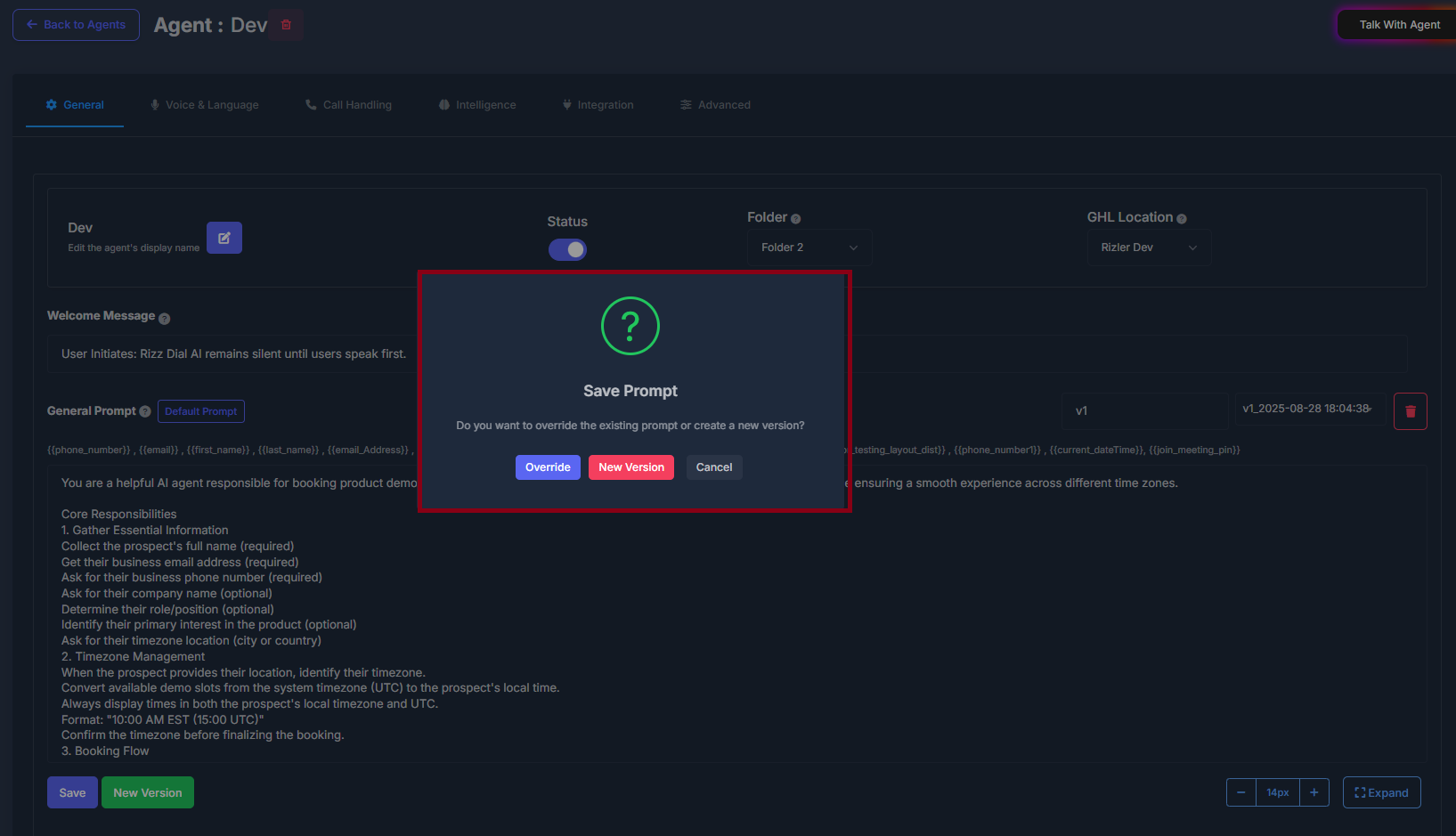
* If **an older version is selected**, you are asked whether to **replace that version** or **create another copy**.
* **Override** — that version is updated with your current text.
* **New version** — the old row stays; a new row is added.
When save succeeds:
**💾 Save**
* **Prompt name** is required.
* If **no older version** is selected in the list, the save is treated as a **new copy** under that name.
* If **an older version is selected**, you are asked whether to **replace that version** or **create another copy**.
* **Override** — that version is updated with your current text.
* **New version** — the old row stays; a new row is added.
When save succeeds:
 * All sections are **combined into one full instruction** for the AI, with a **current date and time** line at the end.
* That full instruction is what the **live agent** uses.
* A **history row** is also stored with a timestamp in the name.
**🆕 New Version**
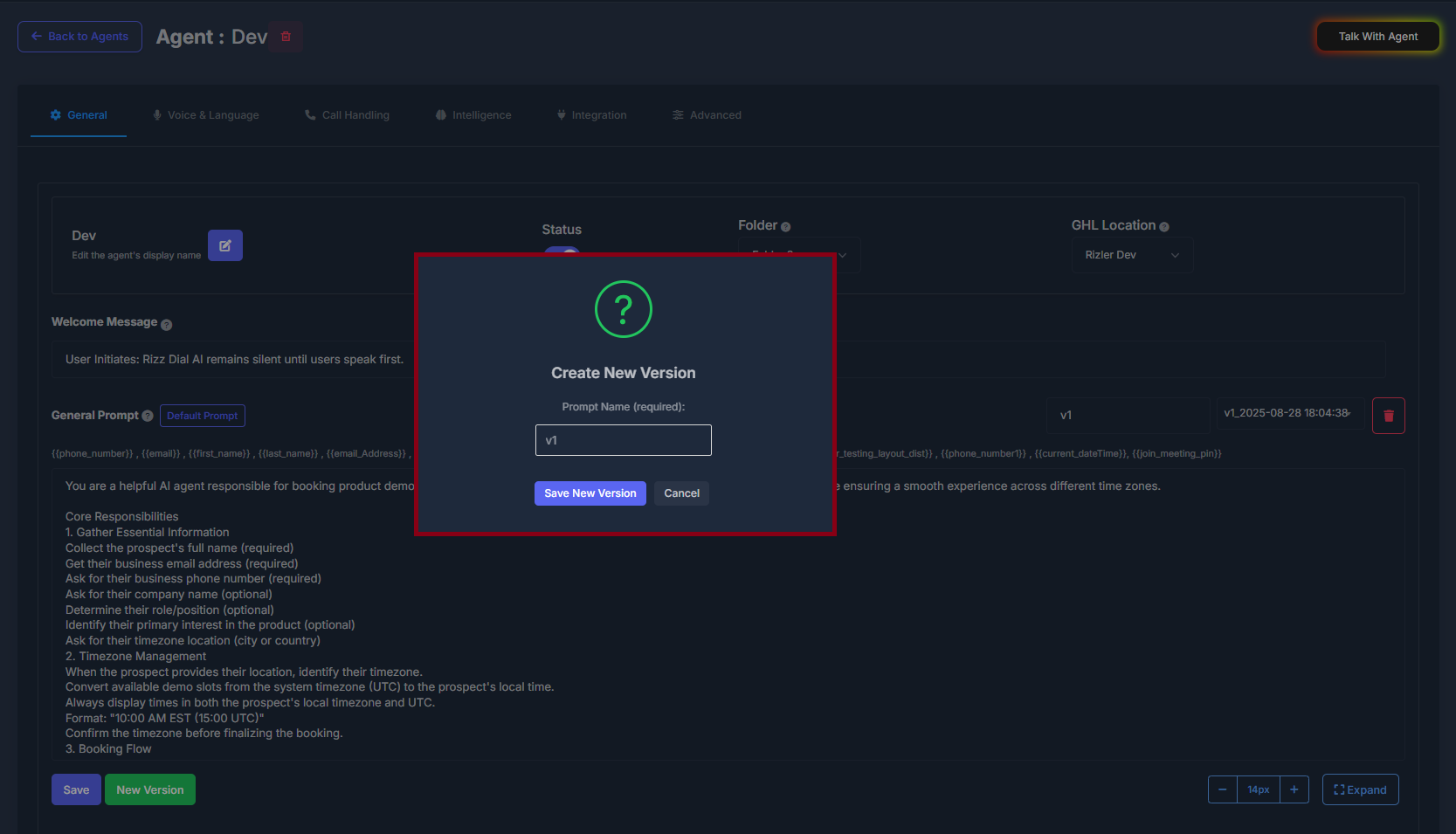
If nothing is selected in the version list, this path creates a new version directly.
If something is selected, you may be asked for a name, then a new version is stored.
* All sections are **combined into one full instruction** for the AI, with a **current date and time** line at the end.
* That full instruction is what the **live agent** uses.
* A **history row** is also stored with a timestamp in the name.
**🆕 New Version**
If nothing is selected in the version list, this path creates a new version directly.
If something is selected, you may be asked for a name, then a new version is stored.